

 Aktualisieren
Smart Unlock Screen
Wollen Sie auch einen Job wie diesen gewinnen?
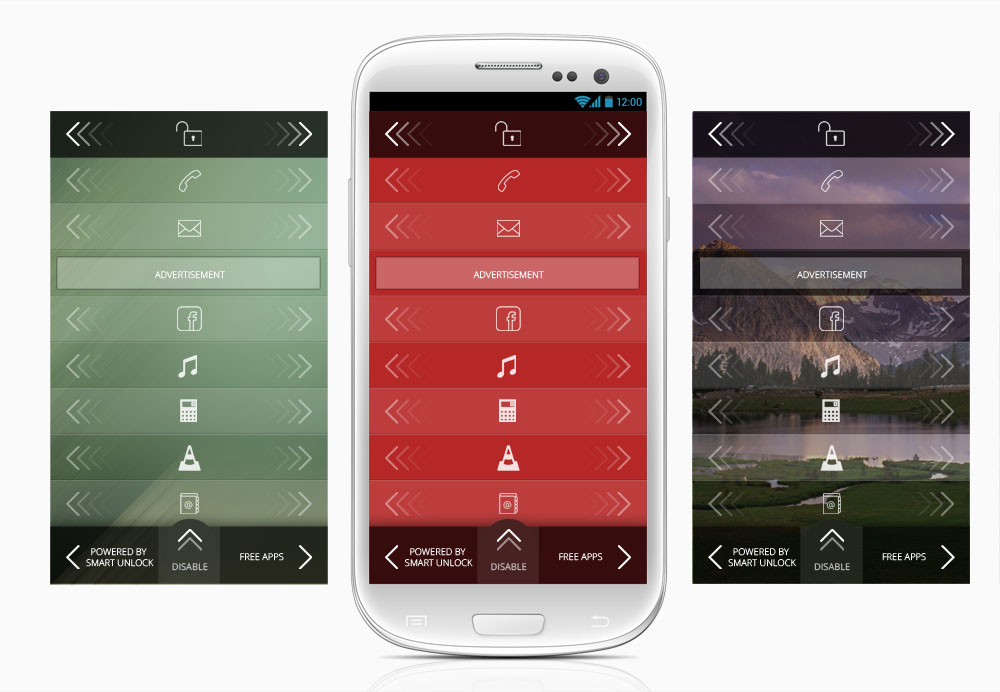
Dieser Kunde bekam 5 App-Designs von 2 Designern. Dabei wurde dieses App-Design Design von Aleksander als Gewinner ausgewählt.
Kostenlos anmelden Design Jobs finden
-
 US$200
-
 5 Designs
-
 2 Designer
App-Design Kurzbeschreibung
Smart Unlock Screen – Project specifications
Introduction:
Smart Unlock Screen (SUL) is an android screen unlock app allowing users to unlock their screen by opening one of their most used apps and so save the need to go to phone home screen and search for that app in order to open it.
Upon installation of the app end user will be presented with a screen that includes an End User License Agreement which the user will be able to Accept or Decline. Upon Acceptance user will be presented with a screen that includes a textual description of the app and an option to choose between a grid view and a list view and also to enable or disable the app. Once the user clicks Enable the app will close and the SUL functionality will start operating for the user. If the user hits Disable there will be another screen presented asking to user to confirm app disabling.
SUL Functionalities:
SUL Interface:
• The interface of SUL will be presented to users every time they wish to "wake-up" their device from lock scree state (typically by clicking home button or one of the side buttons of the device).
• SUL will allow user to unlock screen by selecting one of the apps installed on his/her device. Such selection will unlock the screen and open the selected app at the same time.
• SUL user interface will be presented as one of the followings:
(1) List View - a wall of stripes, each stripe will display an icon of a frequent or recent used app (following logic described below) and swiping such stripe from left to right or from right to left will unlock the screen and at the same time open the selected app so that user will be able to use the selected app immediately upon unlocking the screen.
or
(2) Grid View - a grid of apps following the same logic where each of the app icons can be tapped and dragged to open that app
List view screen:
• The SUL will present the Top 10 used apps in a form of stripes that are framed in the unlock screen. Each stripe will include an icon of the app in the middle of the stripe.
• User will be able to scroll up and down through the unlock screen without unlocking it
• User will be able to unlock screen by swiping the icon from left to right or from right to left and the design should hint that option. Doing this will unlock the screen and will open the app
• Two additional stripes - Stripe number four and the stripe before the last one will present an icon of an advertisement and these stripe will look slightl differently from other stripes.
The very last stripe will be a "Powered By Smart Unlock" stripe and swiping this stripe will open the Smart Unlock app. It should also look a little different from the others
• In case user has an unread text message or a missed call there will be an icon to indicate that and each of the icons will be presented as the first and second stripe from the top
• In addition - the very first stripe will have an unlock icon and it will also look a little different from app stripes as to indicate that swiping that stripe will just unlock the screen without opening a specific app
• At the bottom of the screen there will be a disabled button which will be activated by sliding that button upwards (and the design should indicate that). Once slides upwards it will open a screen with the text: "Are you sure you want to disable Smart Unlock Screen?" and it will have two buttons for yes and no.
SEE SAMPLE PLACEHOLDERS SCREENS FOR LIST VIEW ATTACHED TO PROJECT OVERVIEW
Grid View Screen:
• The SUL grid view screen will show a grid of 9 icons each (three icons in a raw) The middle icon in this grid will be an ad icon and it will look slightly different
• Below the grid there will be a stripe with unlock icon in the middle to indicate that swiping this stripe will unlock the screen without opening a specific app
• Below the strip there will be two rectangular banners - one can be swiped to the left and the other can be swiped to the right and they will be reserved for an ad icons and Powerd By icon that row will look a little different
• At the bottom of the screen there will be a disabled button which will be activated by sliding that button upwards (and the design should indicate that). Once slides upwards it will open a screen with the text: "Are you sure you want to disable Smart Unlock Screen?" and it will have two buttons for yes and no.
SEE SAMPLE PLACEHOLDERS SCREENS FOR GRID VIEW ATTACHED TO PROJECT OVERVIEW
Graphic material needed:
• App icon indicating this is a Smart Unlock Screen App
• User agreement screen
• App description screen with ability to choose between list view and grid view + disable and enable
• List view screen (scrollable up and down - so this is a long screen)
• Grid view screen
• Disable confirmation screen
Attached sample screenshots. Hope this is clear....


